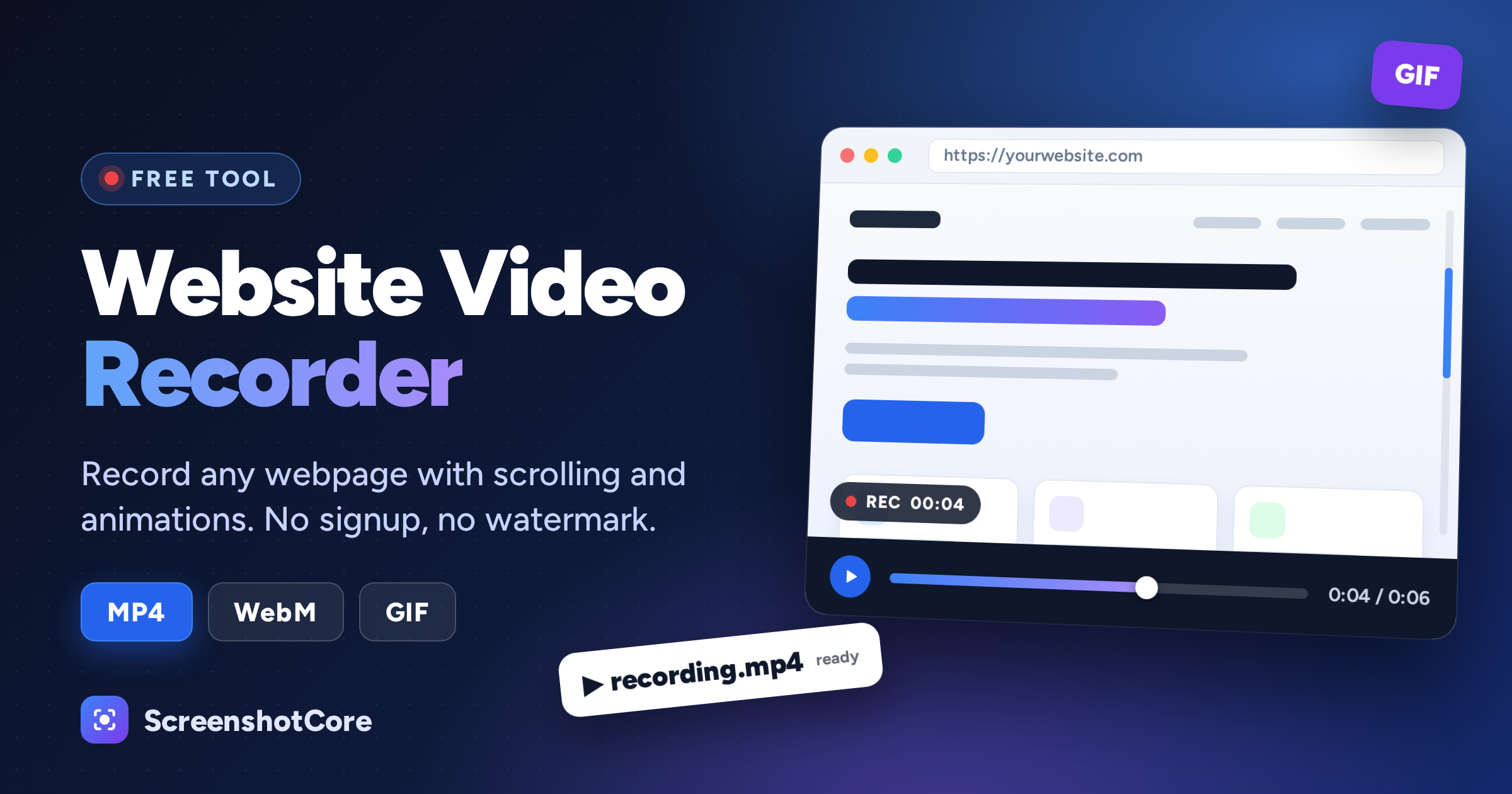
Need to show how a website looks and feels in motion, without installing a screen recorder, cropping a window, or fighting with your OS shortcuts? A website video recorder lets you paste a URL and get back a clean MP4, WebM or GIF of the page, including the scroll. In this guide you'll learn what it is, when it beats a traditional screen recording, and how to use our free online website recorder (or the API) in under a minute.
What Is a Website Video Recorder?
A website video recorder is a tool that opens a web page in a real browser on a server, records it for a few seconds, and hands you the result as a video file. Because the page is rendered by a headless Chromium browser, you get exactly what a visitor would see: fonts, CSS animations, lazy-loaded images, and JavaScript-driven content.
The difference from a desktop screen recorder is that nothing runs on your computer. You don't capture your own screen, so there are no stray notifications, browser toolbars, cursors or bookmarks bar in the final video. The output is consistent every time, at the viewport size you choose.
Why Record a Website Instead of Taking a Screenshot?
A screenshot is great for a static layout, but it can't show motion. Recording a page as a video is the better choice when you want to show:
- Scrolling behavior: how a long landing page flows from the hero to the footer.
- CSS animations and transitions: hover effects, entrance animations, sticky headers and parallax sections.
- Responsive design: the same page at a phone, tablet and desktop viewport.
- Before/after changes: a redesign, a bug fix or a new feature, in a format anyone can watch.
Common Use Cases
Portfolio and client previews
Designers and agencies can send a client a looping GIF or a short MP4 of a new site, instead of a link that may not be deployed yet or a clunky screen recording.
Product Hunt, social posts and landing pages
Short, silent looping videos are the standard way to show a product in a launch post or a tweet. A 5 second scroll of your homepage is often all you need.
Bug reports and QA
Attach a short recording of the page to a ticket so developers can see the problem without reproducing it first.
Documentation and tutorials
Embed a GIF in a README, a Notion page or a help article to demonstrate an animation or a flow. If you document an API, you can pair this with our guide to the website screenshot API.
Monitoring and visual QA
Teams that already compare static screenshots for regressions (see visual regression testing with screenshots) can add a short recording to catch motion issues too.
How to Record a Website for Free
Our free website recorder needs no account and no credit card. Here's the whole process:
- Paste the URL of the page you want to record.
- Choose your options: format (MP4, WebM or GIF), duration, frame rate, and whether the browser should auto-scroll the page.
- Record and download. Our headless Chromium engine records the page and returns your video, with no watermark.
The Options That Matter
Format: MP4, WebM or GIF?
| Format | Best for | Notes |
|---|---|---|
| MP4 | Almost everything | Best compatibility; plays in every browser, phone and chat app. |
| WebM | Embedding on websites | Smaller files that load quickly in modern browsers. |
| GIF | Slack, GitHub, docs | No video player needed, loops automatically, but larger and lower quality. |
Duration
The free tool records between 1 and 6 seconds, which is the sweet spot for loops and previews. Short clips also load faster and are more likely to be watched to the end.
Frame rate
Choose 10, 24, 30 or 60 frames per second. 24 fps looks natural and keeps files small, 30 fps is a good default for UI, and 60 fps makes scroll and animation feel noticeably smoother. Higher frame rates take longer to render and produce larger files.
Auto-scroll
With auto-scroll on, the browser smoothly scrolls from the top of the page downward during the recording. It's ideal for long landing pages and portfolios. Turn it off if you want to capture an animation that plays in place on the first screen.
Tips for Better Website Recordings
- Match the viewport to the destination. Use a wide desktop viewport for a landing page preview and a narrow one for a mobile demo.
- Keep it short. 4 to 6 seconds is enough for most loops.
- Pick MP4 first. Only choose GIF when the platform can't play video.
- Make sure the page is public. The recorder loads the URL from our servers, so pages behind a login or on a private network can't be reached.
- Give heavy pages a moment. If a page loads slowly, add a short delay so content and images are in place before recording starts.
Record Websites Programmatically with the API
The free tool is perfect for one-off recordings. If you need to generate videos automatically, for example a preview for every customer site or a clip in every release note, use the same engine through the API. You send a URL and a few parameters, and you get the video back.
cURL
curl -H "Authorization: Bearer YOUR_API_KEY" \
  "https://api.screenshotcore.com/v1/screenshot?url=https://example.com&format=mp4&video_duration=5&video_fps=30&video_scroll=true" \
  -o example.mp4
Node.js
const axios = require('axios');
const fs    = require('fs');

const response = await axios.get('https://api.screenshotcore.com/v1/screenshot', {
  headers:      { Authorization: 'Bearer YOUR_API_KEY' },
  params:       {
    url:            'https://example.com',
    format:         'mp4',
    video_duration: 5,
    video_fps:      30,
    video_scroll:   true,
  },
  responseType: 'arraybuffer',
});

fs.writeFileSync('example.mp4', response.data);
Python
import requests

response = requests.get(
    "https://api.screenshotcore.com/v1/screenshot",
    headers={"Authorization": "Bearer YOUR_API_KEY"},
    params={
        "url": "https://example.com",
        "format": "mp4",
        "video_duration": 5,
        "video_fps": 30,
        "video_scroll": "true",
    },
)
response.raise_for_status()

with open("example.mp4", "wb") as f:
    f.write(response.content)
Change format to webm or gif to get a different file type. See the API documentation for every option, or read about the website to video API.
Frequently Asked Questions
Is the website video recorder really free?
Yes. There's no account, no credit card and no watermark. You can make 5 free recordings per day, and the counter resets at midnight UTC.
Which formats can I download?
MP4, WebM and animated GIF.
How long can a recording be?
The free tool records 1 to 6 seconds. For more volume or programmatic use, the API gives you more control.
Can I record pages that need a login?
The free tool records public pages only. It can't sign in to a site for you.
Does it record sound?
No. Recordings are silent, which makes them ideal for looping previews, GIFs and social posts.
What's the difference between this and a screen recorder?
A screen recorder captures your own display, along with everything on it. A website video recorder renders the page on a server at a fixed size, so the result is clean and repeatable, and you don't have to install or run anything.
Try It Now
Ready to record your first page? Open the free website video recorder, paste a URL and download your video in seconds. Need more recordings or want to automate it? Start a free 7-day trial with 300 screenshots and 50 videos included, no credit card required.