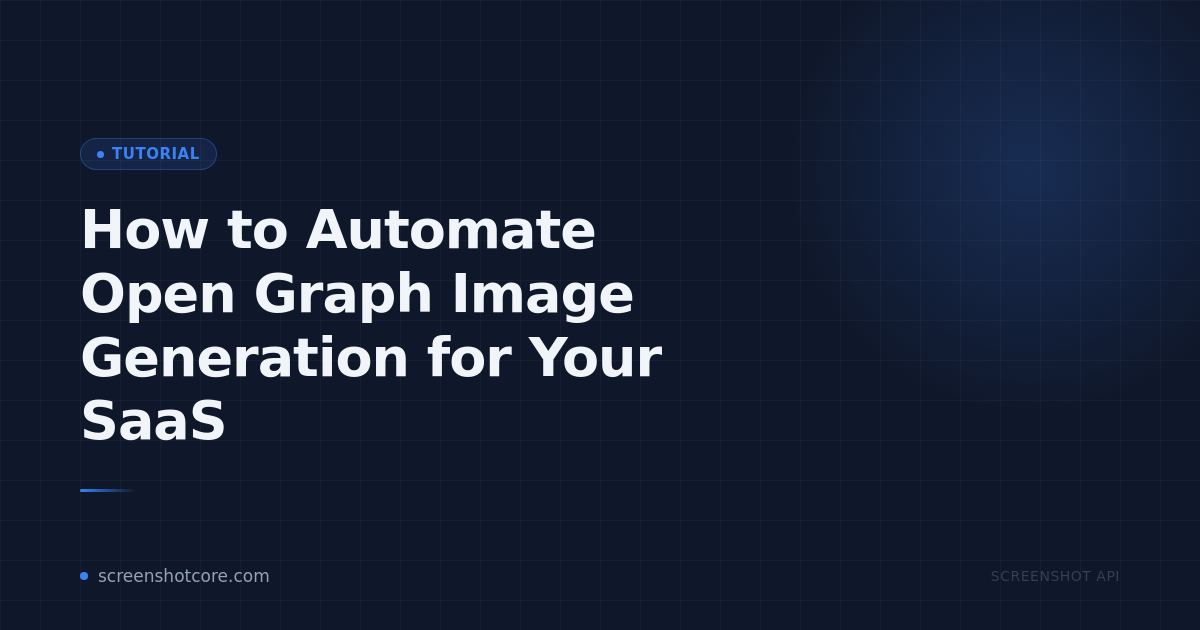
Every time you share a link on Twitter, LinkedIn, or Slack, platforms fetch the Open Graph image from your <meta property="og:image"> tag. A good OG image doubles click-through rates. A bad - or missing - one gets ignored.
The problem: designing custom OG images for every blog post, product page, or dynamic URL is time-consuming. The solution is to generate them automatically with a screenshot API.
What Is an Open Graph Image?
Open Graph images are the preview thumbnails that appear when a URL is shared on social media. They are defined in your HTML <head>:
<meta property="og:image" content="https://yourdomain.com/og/my-article.png" />
<meta property="og:image:width" content="1200" />
<meta property="og:image:height" content="630" />
The standard size is 1200×630 pixels. Twitter (X) uses a similar format for its Twitter Card.
The Manual Approach (And Why It Doesn't Scale)
Many teams open Figma or Canva, tweak a template for every new piece of content, export a PNG, upload it to a CDN, and paste the URL into a meta tag. That's 5-10 minutes per page. For a blog with 200 posts, that's 16+ hours of busywork - and every time a post title changes, the image is outdated.
The Automated Approach: Screenshot API
A screenshot API renders an HTML page - your OG image template - and returns a PNG. The flow is:
- Design an HTML template that accepts URL parameters (title, author, category).
- Serve the template at a URL like
/og-template?title=My+Post&category=Tutorial. - Call the screenshot API with that URL and store the resulting image.
- Set the stored image URL as your
og:imagemeta tag.
Step 1: Create Your HTML Template
Here's a minimal OG image template in HTML:
<!DOCTYPE html>
<html>
<head>
  <meta charset="UTF-8">
  <style>
    * { margin: 0; padding: 0; box-sizing: border-box; }
    body {
      width: 1200px; height: 630px;
      background: #0f172a;
      font-family: 'Inter', sans-serif;
      display: flex; align-items: center;
      padding: 80px;
    }
    .badge {
      display: inline-block;
      background: #3b82f6; color: #fff;
      font-size: 18px; padding: 6px 16px;
      border-radius: 9999px; margin-bottom: 24px;
    }
    h1 { color: #fff; font-size: 56px; line-height: 1.2; }
    .footer { position: absolute; bottom: 48px; left: 80px; color: #94a3b8; font-size: 20px; }
  </style>
</head>
<body>
  <div>
    <span class="badge" id="cat"></span>
    <h1 id="title"></h1>
    <div class="footer">screenshotcore.com</div>
  </div>
  <script>
    const p = new URLSearchParams(location.search);
    document.getElementById('title').textContent = p.get('title') || 'Untitled';
    document.getElementById('cat').textContent   = p.get('category') || 'Blog';
  </script>
</body>
</html>
Host this at https://yourapp.com/og-template.
Step 2: Generate the Screenshot with Node.js
const axios = require('axios');
const fs    = require('fs');

async function generateOgImage({ title, category, outputPath }) {
  const templateUrl = new URL('https://yourapp.com/og-template');
  templateUrl.searchParams.set('title', title);
  templateUrl.searchParams.set('category', category);

  const response = await axios.get('https://api.screenshotcore.com/v1/screenshot', {
    headers: { Authorization: 'Bearer YOUR_API_KEY' },
    params: {
      url:    templateUrl.toString(),
      width:  1200,
      height: 630,
      format: 'png',
    },
    responseType: 'arraybuffer',
  });

  fs.writeFileSync(outputPath, response.data);
  console.log(`OG image saved: ${outputPath}`);
}

generateOgImage({
  title:      'How to Build a REST API with Node.js',
  category:   'Tutorial',
  outputPath: './og-images/rest-api-tutorial.png',
});
Step 3: Generate the Screenshot with Python
import requests
from urllib.parse import urlencode

def generate_og_image(title: str, category: str, output_path: str) -> None:
    params = urlencode({"title": title, "category": category})
    template_url = f"https://yourapp.com/og-template?{params}"

    response = requests.get(
        "https://api.screenshotcore.com/v1/screenshot",
        headers={"Authorization": "Bearer YOUR_API_KEY"},
        params={
            "url":    template_url,
            "width":  1200,
            "height": 630,
            "format": "png",
        },
    )
    response.raise_for_status()

    with open(output_path, "wb") as f:
        f.write(response.content)

generate_og_image(
    title="How to Build a REST API with Python",
    category="Tutorial",
    output_path="./og-images/rest-api-python.png",
)
Step 4: Automate on Content Publish
The real power comes when you hook image generation into your CMS publish flow:
- WordPress: Use a
save_postaction hook to call the API when a post is published. - Contentful / Sanity: Add a webhook that fires on entry publish and calls your generation endpoint.
- GitHub Actions: Run a script in CI that regenerates OG images for changed markdown files.
- Laravel / Django / Rails: Fire a background job on model save.
Store the resulting image URL in your content model and output it in your <head>. From that point on, every shared link gets a branded, on-brand preview - automatically.
Best Practices
- Cache aggressively. Generate once per post and store the URL. Only regenerate when the title changes.
- Keep templates simple. Complex CSS and web fonts add render time. Stick to system fonts or embed a single font as base64.
- Use full-page: false. Always set a fixed viewport (1200×630) and disable full-page capture to get exactly the right crop.
- Test with the Facebook Debugger and Twitter Card Validator after setting up your pipeline to confirm images are fetched correctly.
Summary
Automating Open Graph image generation saves hours of design work and ensures every piece of content - including dynamically generated pages - gets a professional social preview. A screenshot API is the simplest infrastructure you can add to make it happen.
Try the ScreenshotCore API free - no credit card required, 100 screenshots/month on the free plan.